Product code: RUCM-AFAC
Category: Cables and adapters , USB adapters
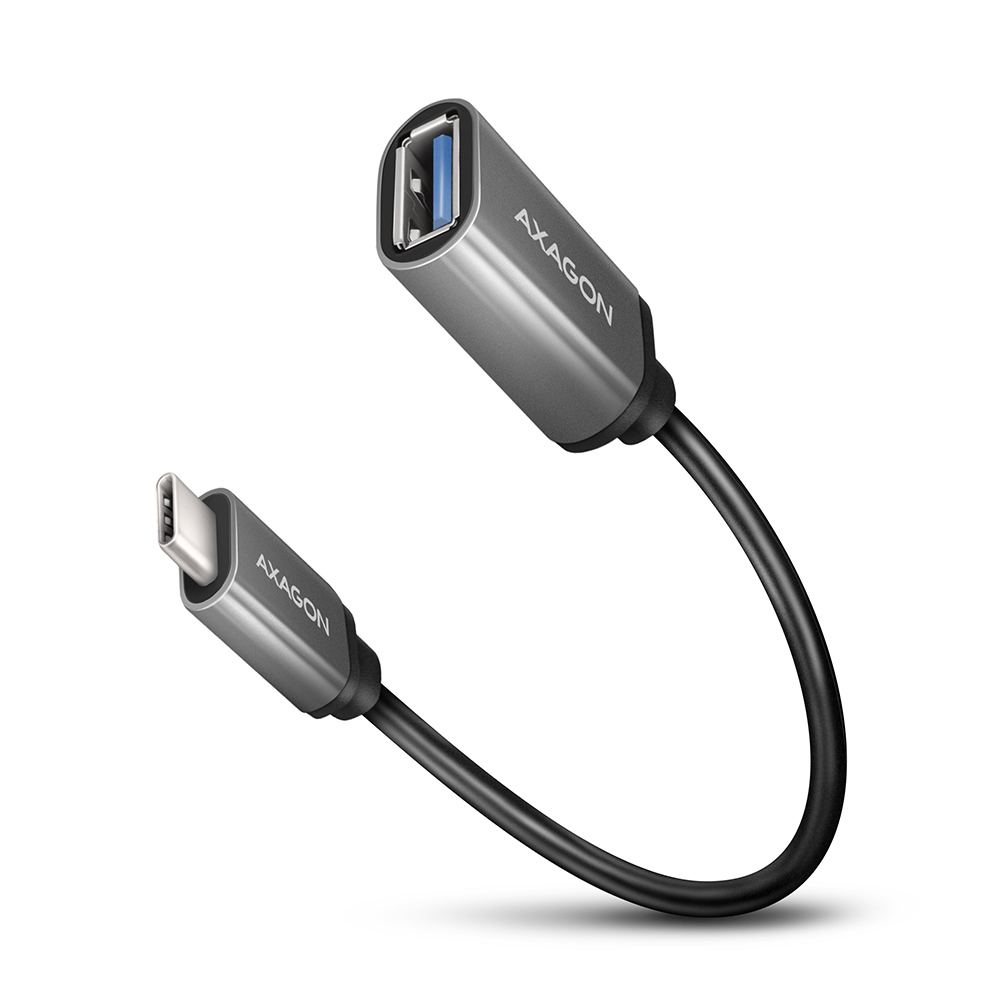
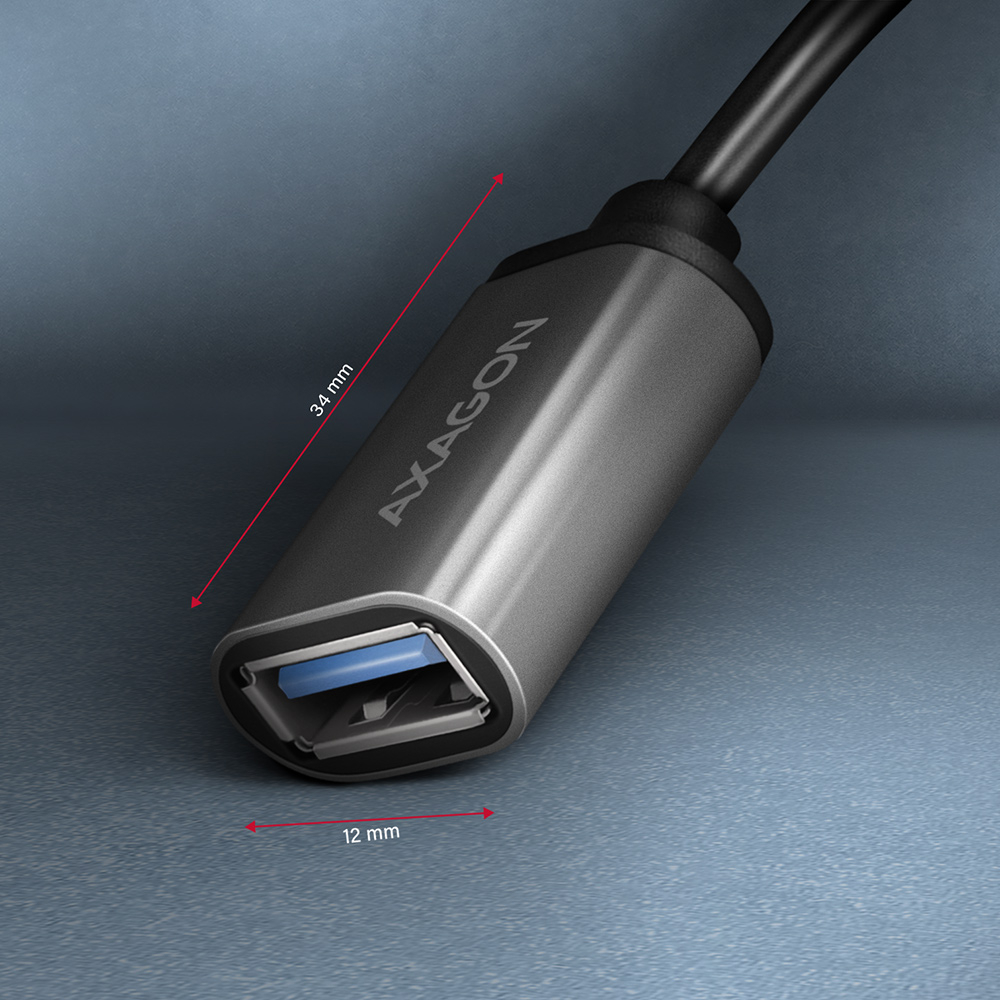
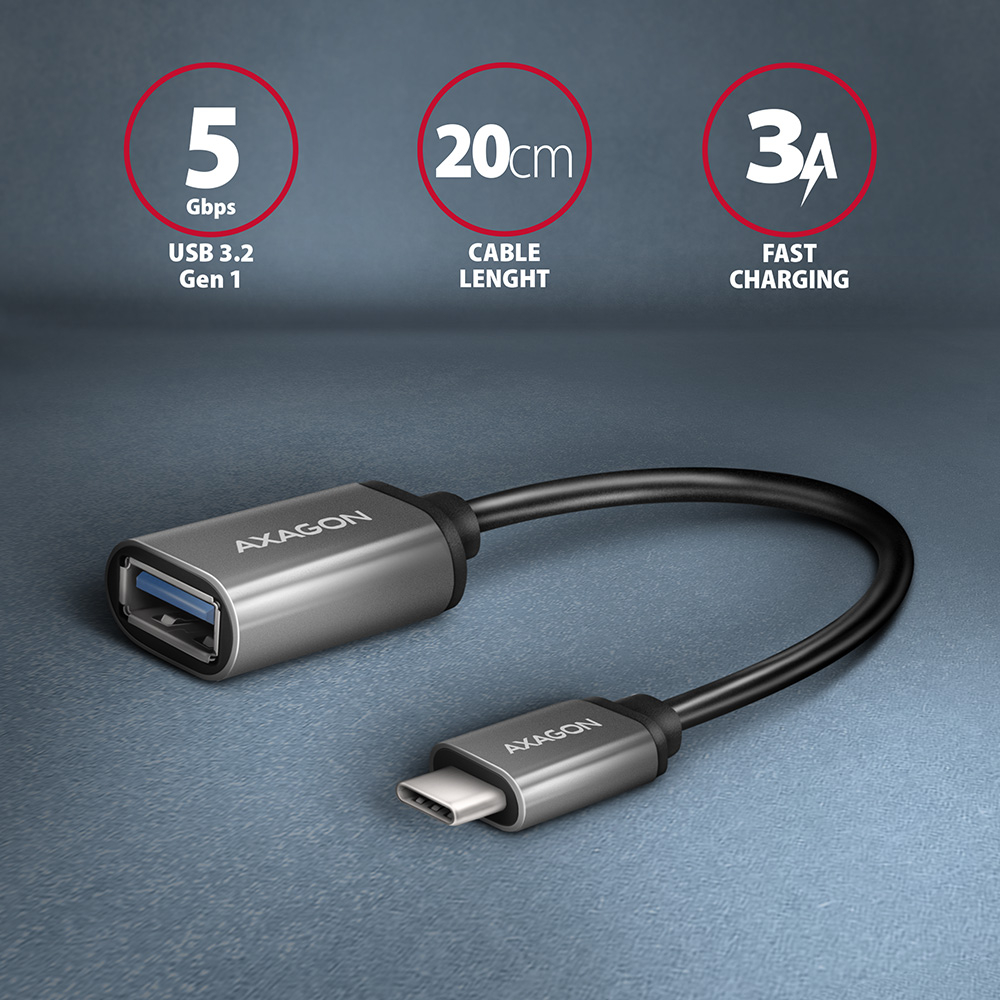
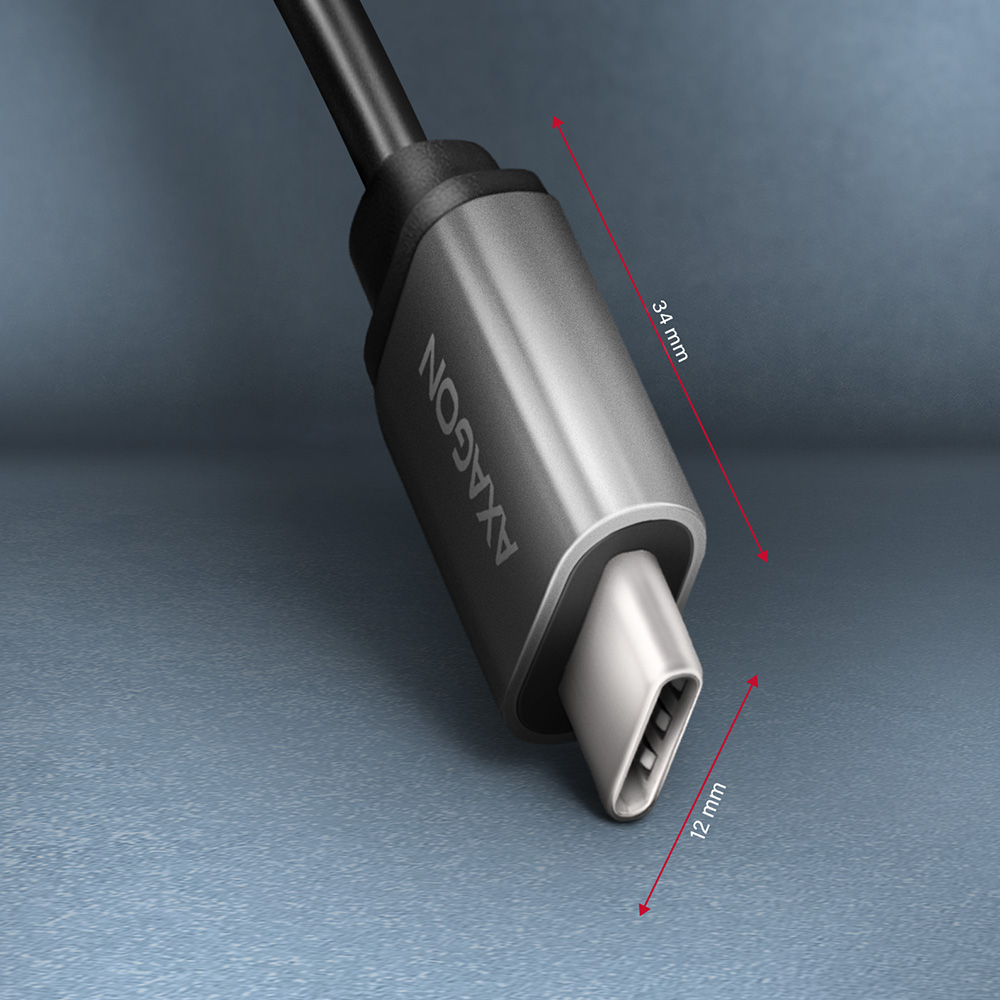
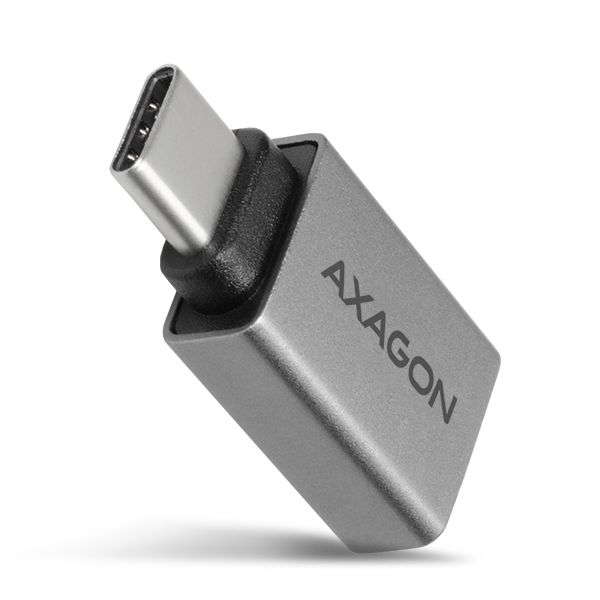
Cable adapter USB-C <-> USB-A AXAGON RUCM-AFAC connects existing devices with a USB-A connector to any new device with a modern USB-C interface.
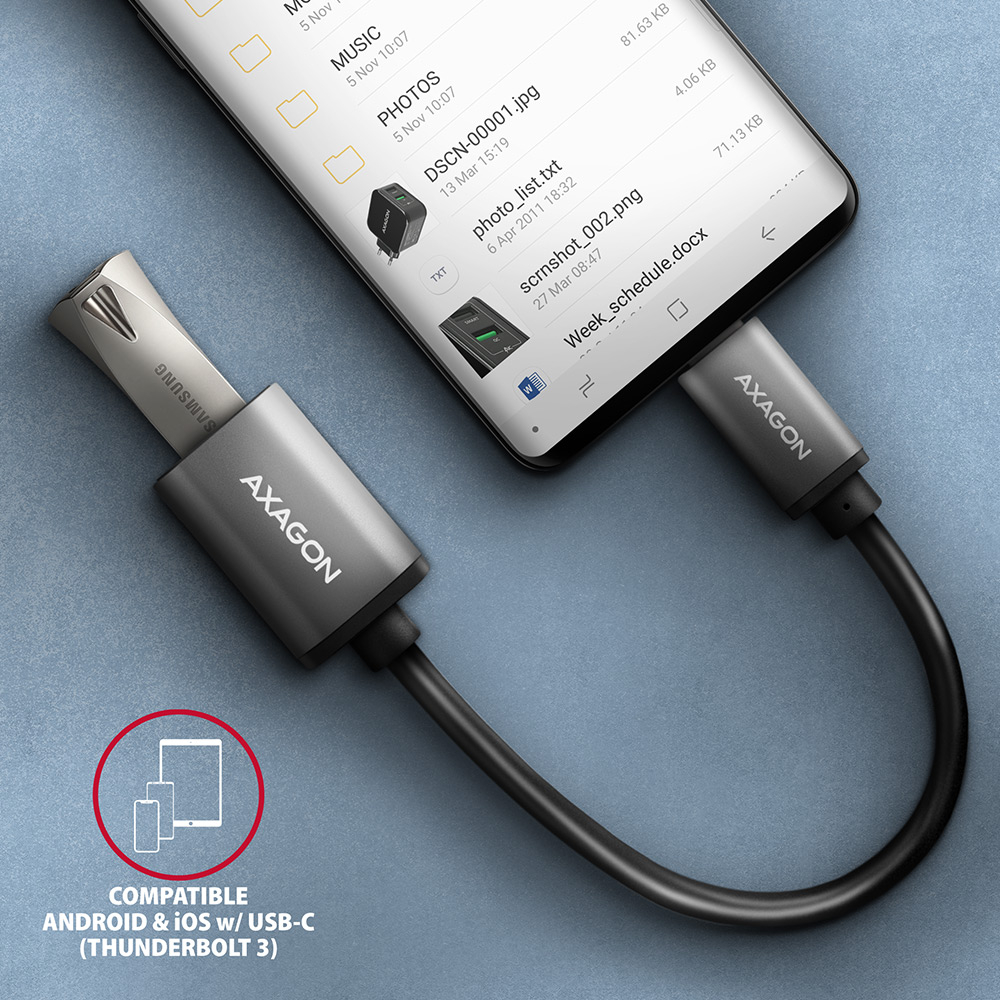
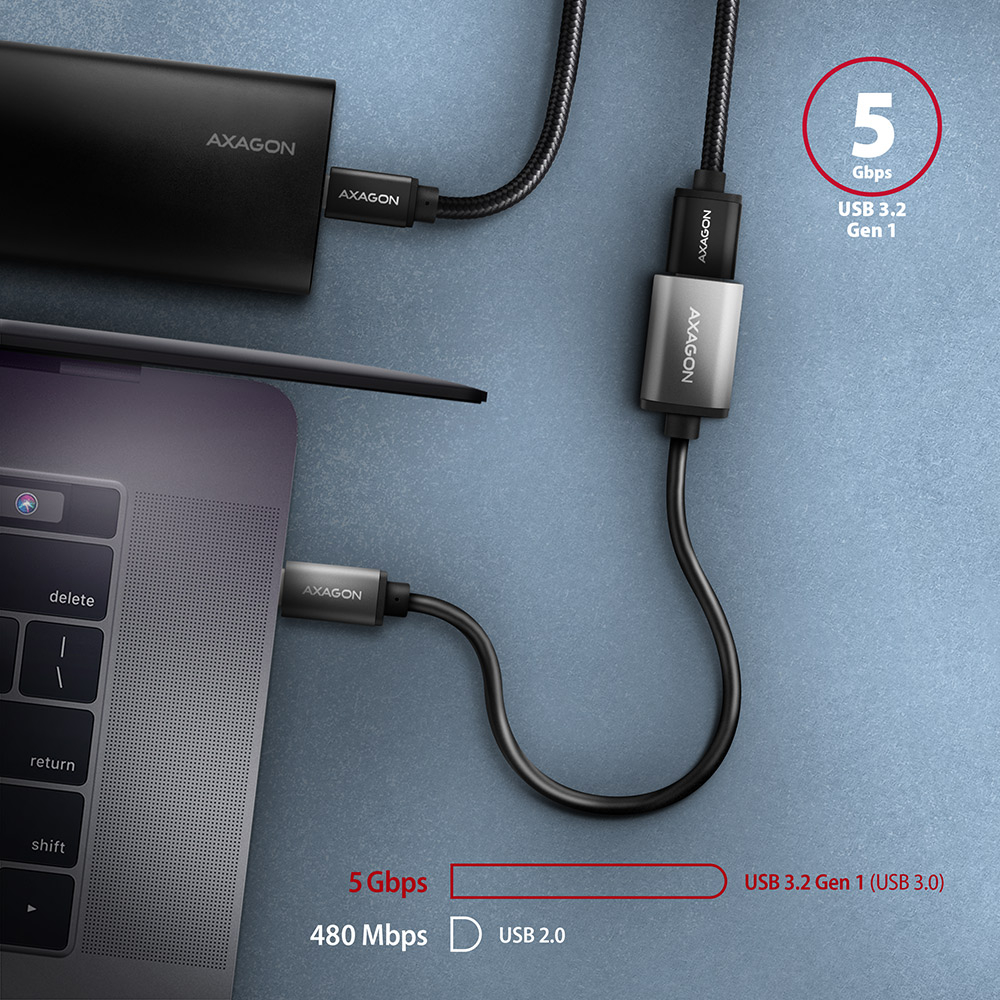
Adapter is designed for quick connection of a USB hub or external drive to notebooks equipped with only USB-C connectors. It is also great for connecting a flash drive to a mobile phone with a USB-C connector. It supports data transfer speeds of up to 5 Gb/s and power supplies of up to 3A.
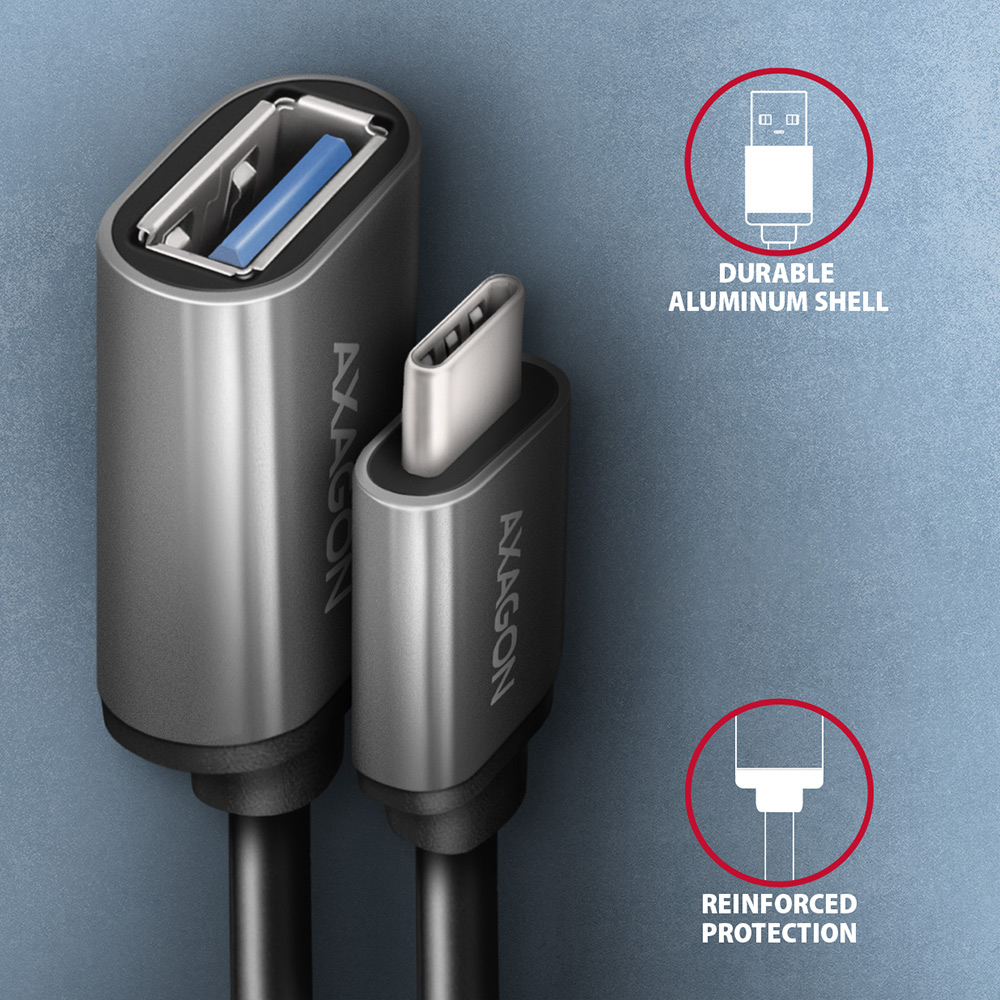
The reduction is equipped with metal terminals, connectors with a nickel-plated surface and gold-plated contacts. Cable conductors are made of Tin-plated oxygen free copper. High-quality cable insulation, made of flexible TPE, guarantees maximum durability and also maintains sufficient flexibility. Triple shielding protects transmitted signals from adverse interference.
Connectors:
• vstup USB-C (M) male.
• výstup USB-A (F) female.
Other Features:
• DATA SYNC & FAST CHARGING - simultaneous data transfer and mobile device battery charging.
• SuperSpeed USB - USB 3.2 Gen 1 (formerly USB 3.1 Gen 1 / USB 3.0).
• Compatible with USB 3.2 Gen 2, backward compatible with USB 2.0.
• Supports 5.000 / 480 / 12 / 1.5 Mb/s (SuperSpeed / High / Full / Low speed) transmission rates.
• Support for high-speed charging by current up to 3A.
• Cable includes power wires 22AWG, data wires 30AWG.
Tin-plated oxygen free copper conductors to reduce oxidation, increase conductivity, and clear signal without distortion.
• Double shielding via galvanized foil and oxygen free copper braiding minimizes interference and prevents signal loss.
• Nickel-plated connectors and gold-plated contacts prevent oxidation and provide a reliable connection.
• Pulldown resistor 5 kΩ.
• Suitable for notebooks, mobile phones and smartphones, powerbanks, tablets and other mobile devices with USB-C connector.
Other data:
• cable length 0.2 m,
• 4.2 mm outer diameter.
Package contains:
• USB-C M <-> USB-A F cable adapter,
• packed in a printed and sealed foil package with hanging hole.
- USB-C M <-> USB-A F cable adapter
- sealed foil packaging
- package dimensions 20.5 x 13 x 1.1 cm
- weight of 1 pc package 22 g
- EAN 8595247905994
- number of pieces in the box: 400
- total weight of the box: 8.6 kg G.W.
- box dimensions: 46 x 30 x 30 cm
A): Check that all connectors on the adapter, source device, and display device are properly connected and seated.
B): Check the connecting cables and replace them if necessary.
C): When using long cables (over 10 m), we recommend using high-quality or active cables, or signal amplifiers.
D): Connect a microUSB charger to the external power input.
A): Verify that the given resolution or refresh rate is supported by the display device (monitor, TV, projector), graphics card, drivers, or operating system.
A): Check the settings according to the chapter “SETTING UP AUDIO OUTPUT TO MONITOR, TV, OR PROJECTOR.”
A): Check all connections.
B): Verify in Device Manager that you are not using the “Microsoft Basic Display Adapter.” If you are, install the latest graphics card driver.
A): The use of other cables with ADR cables is not recommended because there is a greater voltage drop on them and there may be communication failures.
B): Only when it is absolutely necessary (such as when connecting a printer), where there is another type of USB-B connector and in the shortest possible length - the use of a transient reduction is ideal.
A) The VGA connector does not transmit the sound, so the RVH-VGA audio stereo output is to a 3.5 jack to which headphones or active speakers can be connected.
B) To use the audio output, set the HDMI output as the default sound playback device (or install audio drivers for the graphics card of your computer).
A) Some devices may need auxiliary power via the microUSB connector on the adapter body. When connecting to a desktop PC or laptop, additional power is not needed.
B) The power supply is not included, but any mobile phone charger with a microUSB output can be used.
A): Check that all connectors on the adapter, source device, and display device are properly connected and seated.
B): The adapter is one-way; check that it is not connected in the wrong direction.
C): Check that the correct input source is selected on the display device.
D): Check that the display output settings on the source device (PC, notebook) are correct. See the chapter “DISPLAY MODE SETTINGS.”
E): Check all connecting cables.
F): Restart the PC (notebook) with the adapter and display device connected.
G): If none of the above works, test the adapter with another device.
A): If a device without own power supply and higher current consumption is connected to an active power cord , the device may not work or works unreliably. If you want to use a self-powered device such as a printer at the end of the cable, no auxiliary power is needed.
B): The auxiliary power supply should be used at a higher demand than 100 mA, or when several cables are connected in series (behind each other). For details, refer to the User Manual (downloadable on the product page).
A): If the adapter is not displayed in "Device Manager" (in USB Bus Controllers - USB Print Support), there may be a USB port malfunction.
B): Try plugging the adapter into another USB port. The adapter should be detected and the drivers loaded automatically. If the problem persists, plug the adapter into the USB port of another computer to verify its functionality.
A): If this happens, it means that the operating system failed to get the necessary information to install the drivers.
B): The cause may be a defective USB cable or damaged device. If the problem persists, plug the adapter into the USB port of another computer to verify its functionality.
A): After installing the drivers the adapter will log in Device Manager in the section Ports (COM and LPT) as USB to serial Comm Port, so it can.
B): However, it still depends on the SW device, some very old programs need a specific interrupt (IRQ) that does not work correctly with the USB / COM converter.
A): You will need a female-female reduction because the ADS-xx has a male end.
B): Be careful that this reduction is not cross-linked (so called Null Modem), so you need a standard non-cross-linked reduction to connect.
A): Yes, using multiple ADS-xx units on one PC (NTB) is possible.
B): Each adapter gets its own COM port number assigned by the system, which can be changed in the settings as needed by the user.